Orb for Microsoft Teams
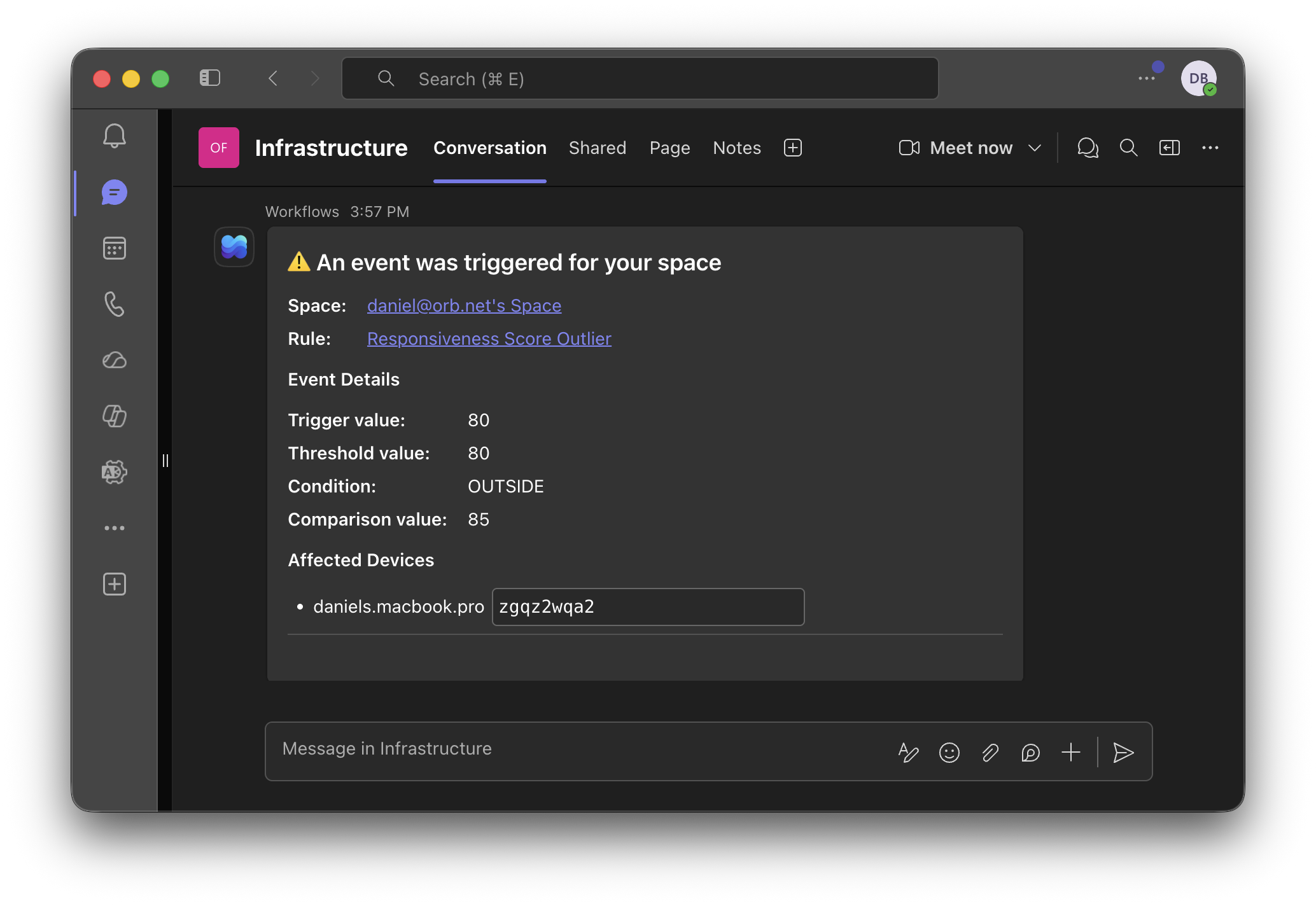
The Microsoft Teams integration posts a notification to a Teams channel whenever an Orb Event is triggered. Connect Orb Cloud to a Teams channel using an incoming webhook, then point one or more of your Event Destinations at it to keep your team informed about connectivity and performance changes without leaving Teams.
How it works
Microsoft Teams provides an incoming webhook URL through its built-in Workflows. When you create a Microsoft Teams Destination in Orb Cloud and paste in that webhook URL, any Event configured to use the Destination will post a message to the channel with the details of what was triggered.
Requirements
- A Microsoft Teams account with permission to add Workflows to a channel
- Access to Orb Cloud with permission to manage Events & Alerts
Step 1: Create a webhook in Microsoft Teams
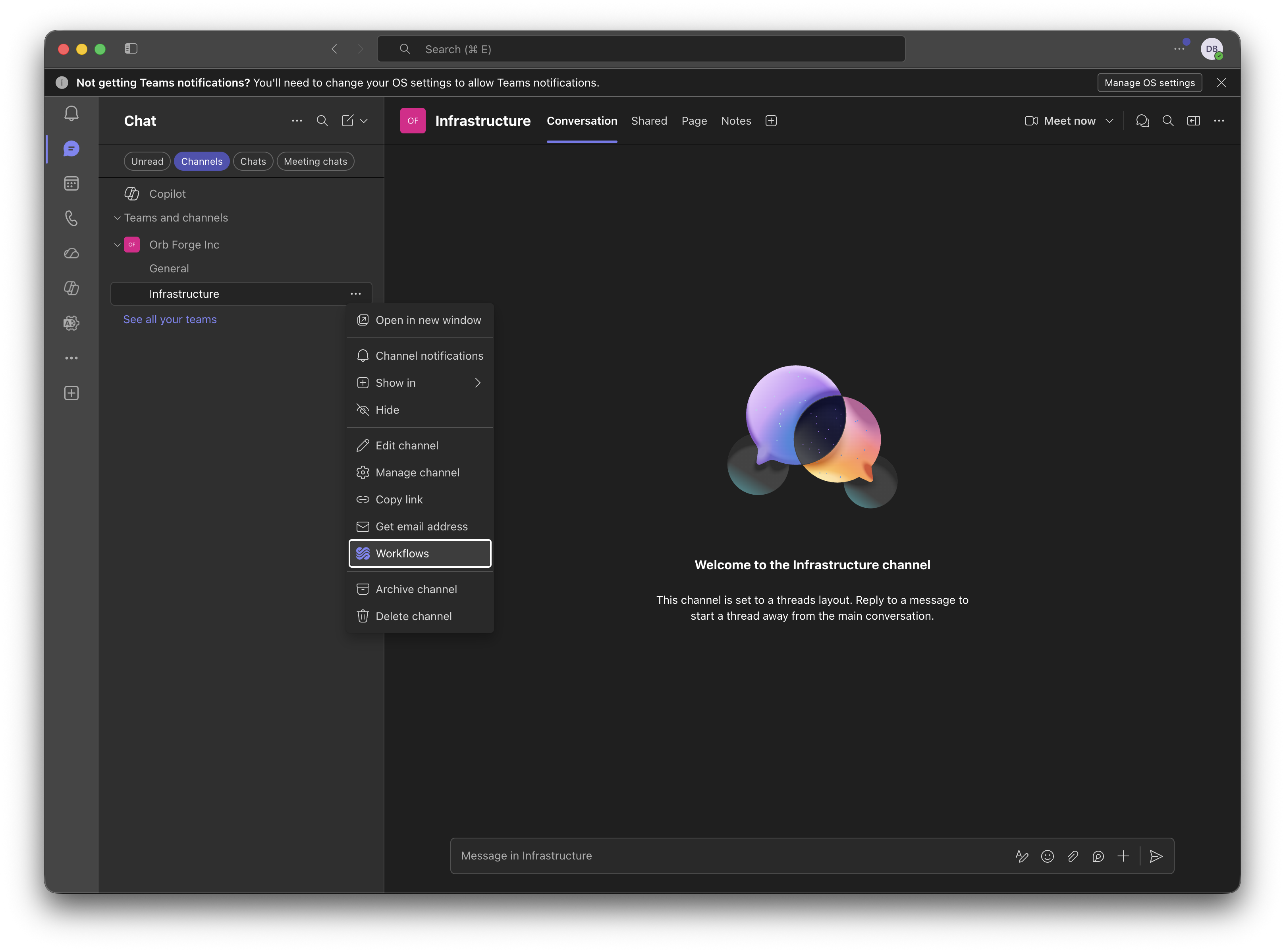
Open the channel's Workflows
- Open the Teams channel where you want messages to appear.
- Click the … (More options) next to the channel.
- Select Workflows.
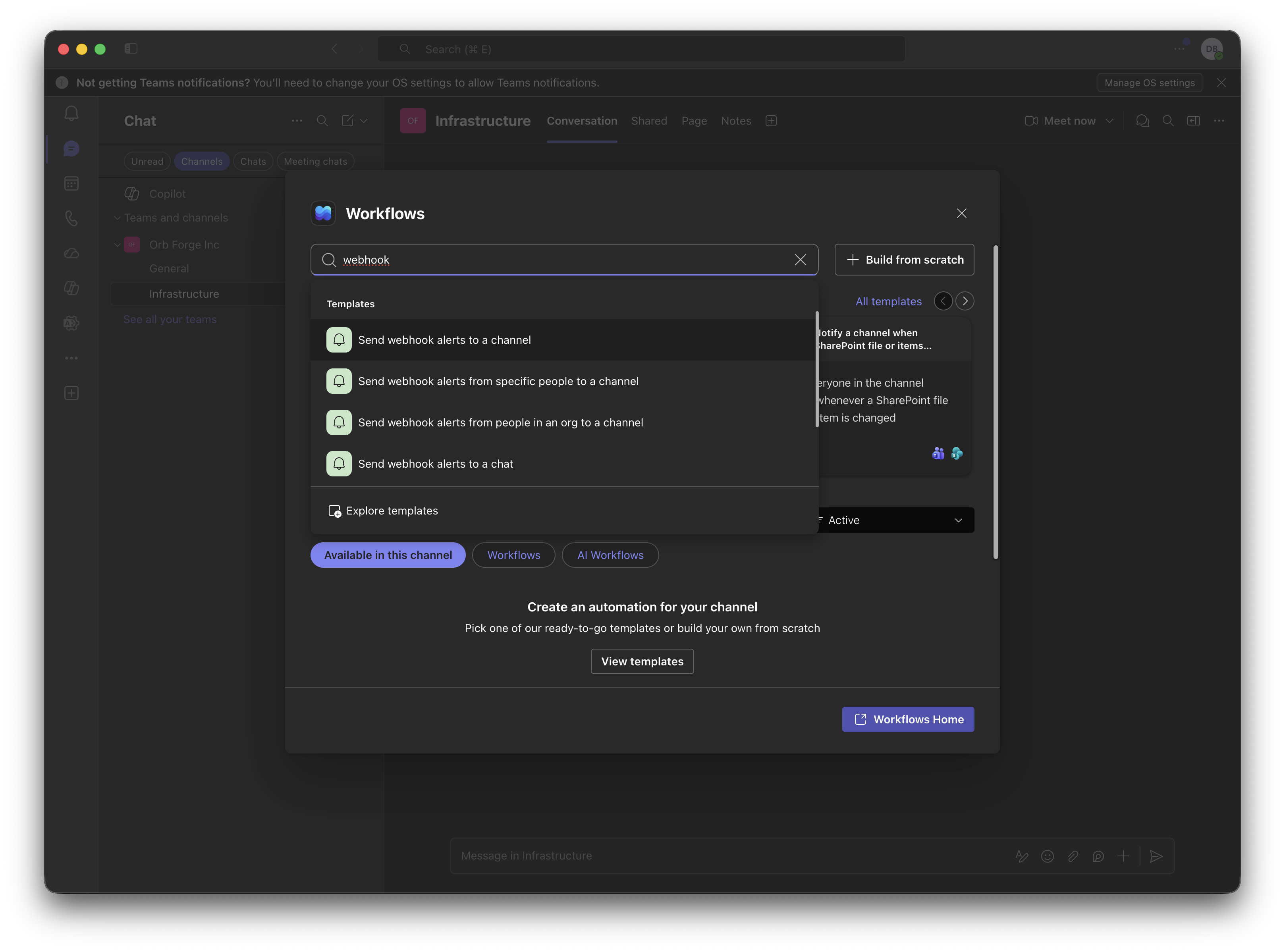
Add the webhook workflow
- Search for webhook and select Send webhook alerts to a channel.
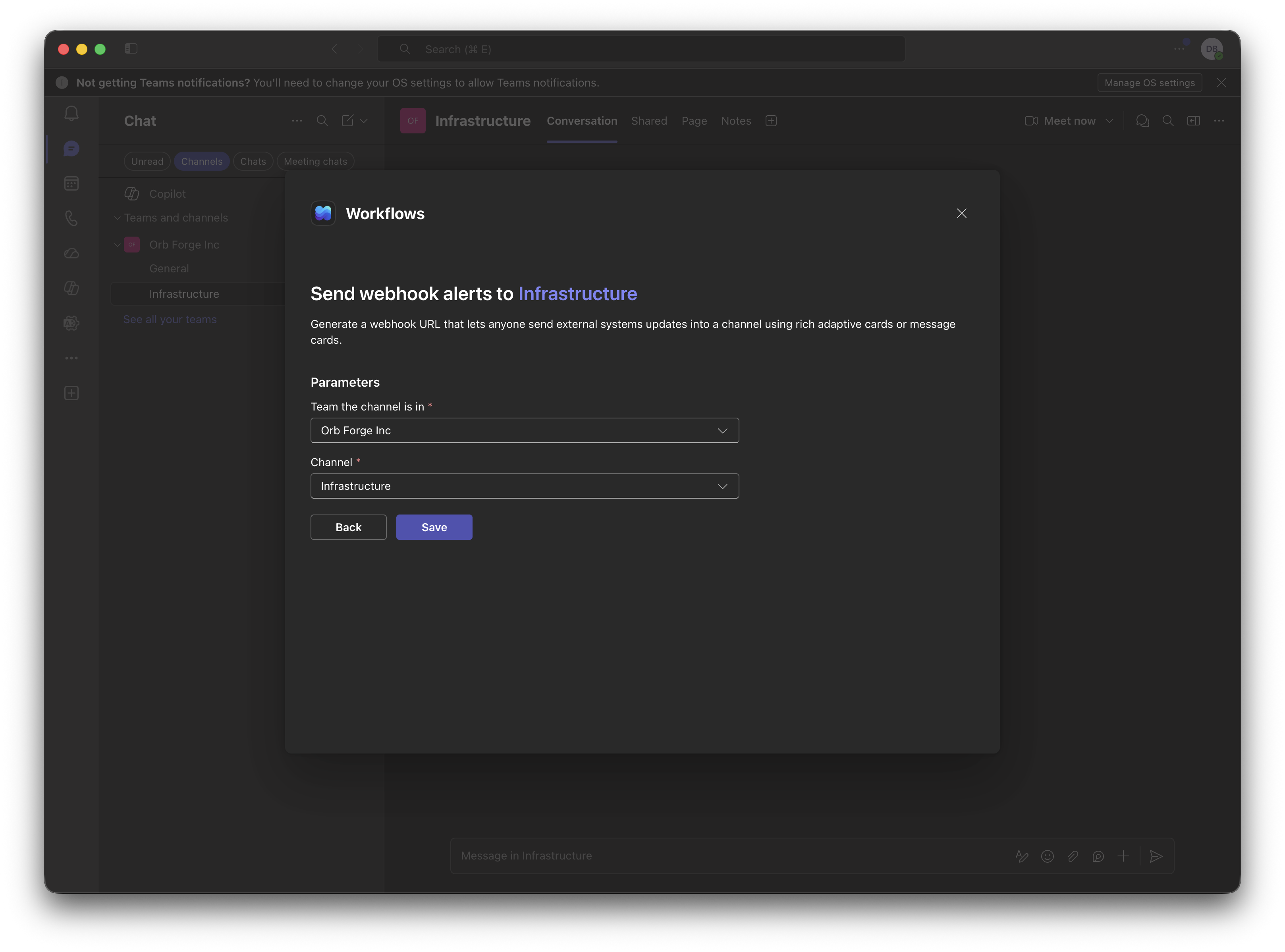
- Fill out the parameters, confirming the correct Team and Channel are selected, then click Save.
Copy the webhook link
- Click Copy webhook link. Keep this URL handy — you'll paste it into Orb Cloud in the next step.
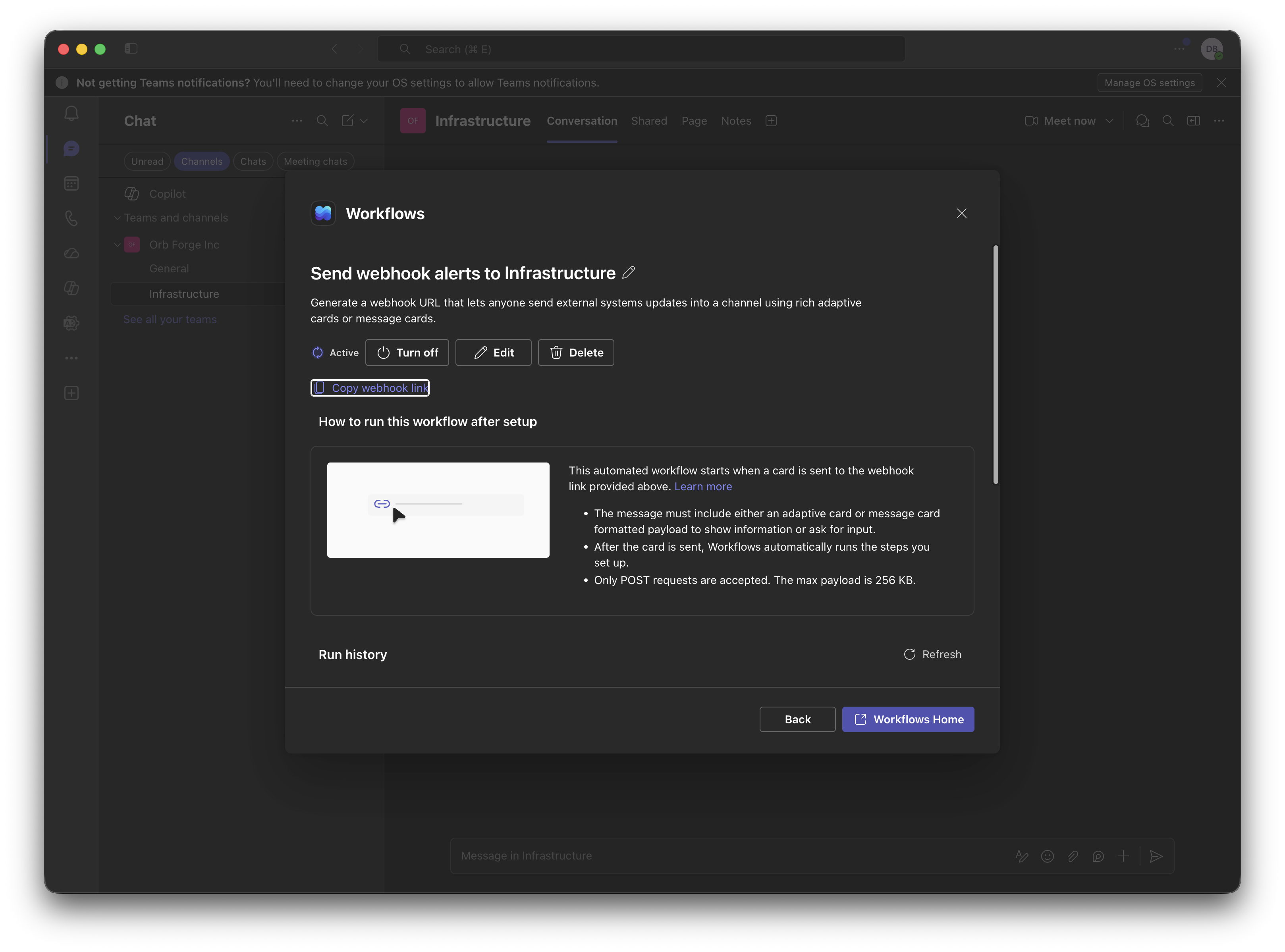
Treat the webhook URL like a secret. Anyone with the URL can post messages to your channel.
Step 2: Create the Destination in Orb Cloud
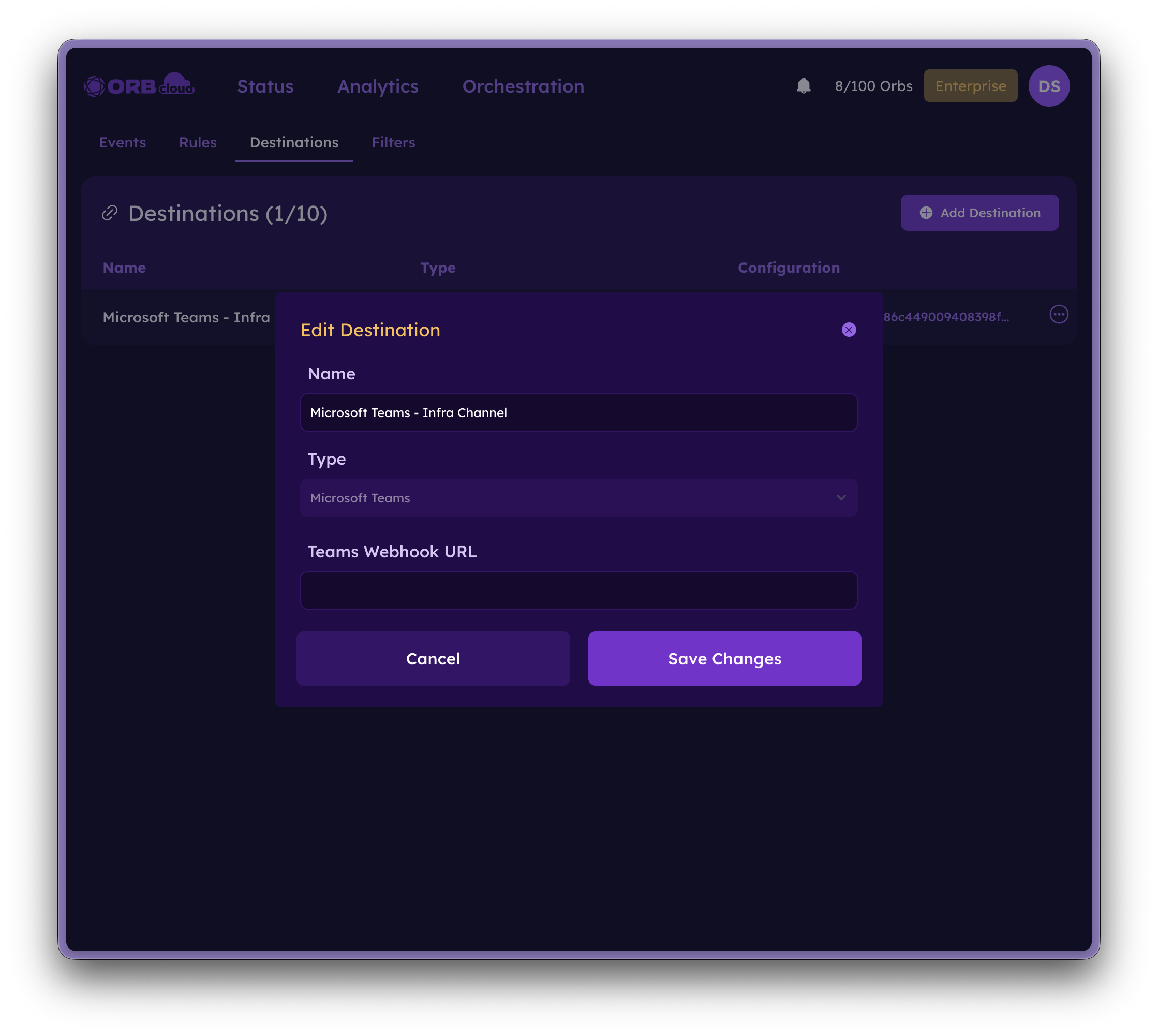
- In Orb Cloud, create a new Destination of type Microsoft Teams. See the Events & Alerts documentation for details on managing Destinations.
- Give the Destination a descriptive name.
- Paste the webhook link you copied from Teams into the Teams Webhook URL field, then save.
Step 3: Configure an Event
Configure an Event as described in the Events & Alerts documentation and select the Microsoft Teams Destination you just created. The next time that Event triggers, a notification will be posted to your Teams channel.
Troubleshooting
Messages aren't arriving in Teams
- Confirm the workflow is set to Active in the Teams Workflows panel.
- Verify the webhook URL was copied in full and pasted into the Orb Cloud Destination without extra spaces.
- Make sure the Event is enabled and the Microsoft Teams Destination is selected on the rule.
The webhook stopped working
Teams webhook URLs can expire or be revoked. If messages stop arriving, re-open the channel's Workflows, copy a fresh webhook link, and update the URL on your Orb Cloud Destination.
Support
For additional help with the Microsoft Teams integration:
- Join our Discord community
- Contact the Orb team