Sensorbox
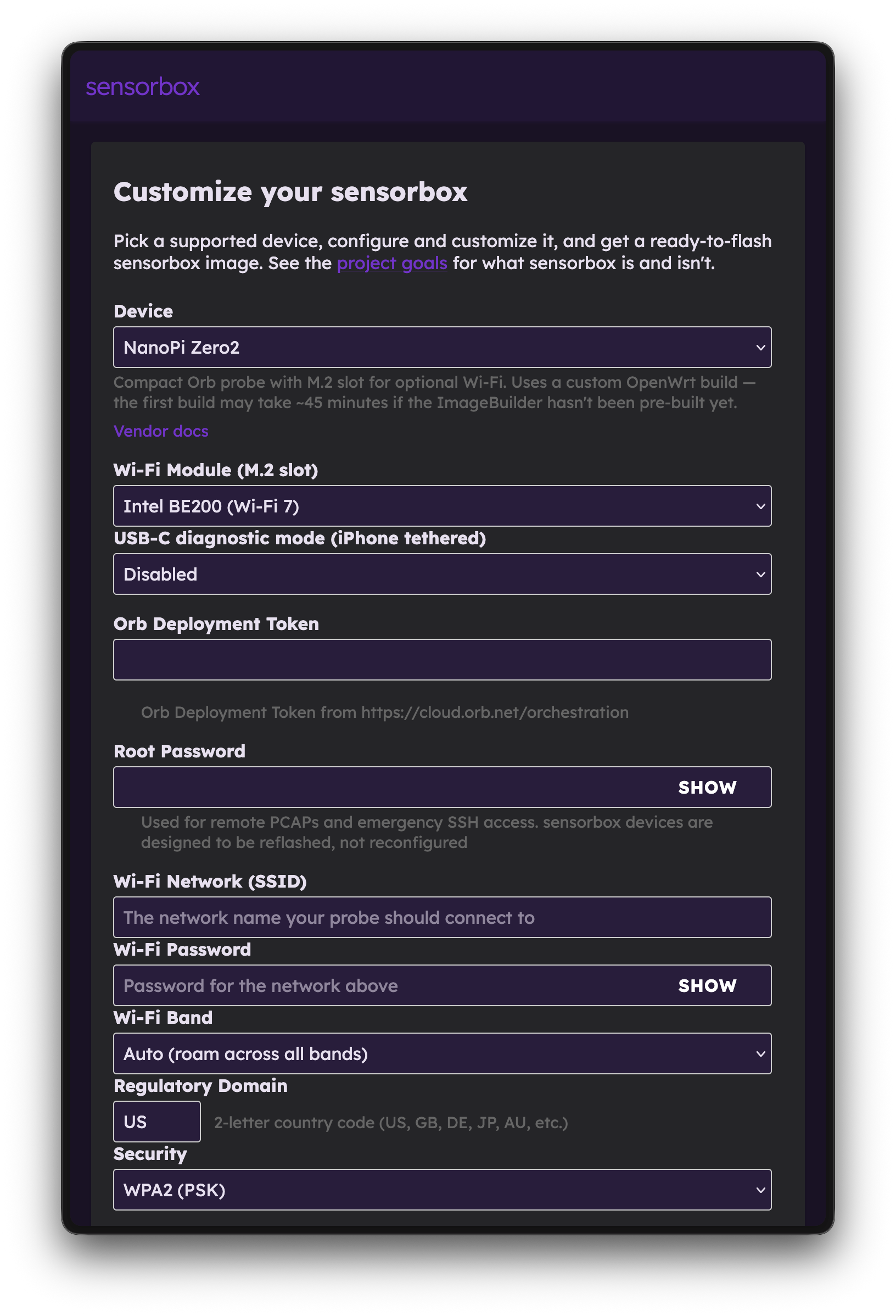
Sensorbox is a self-hosted system for building OpenWrt-based Orb sensor images. You run a small web app locally, pick a supported device, provide your Wi-Fi credentials, and customize your install. The result is an SD-card (or eMMC) image that boots into a dedicated, always-on Orb sensor — ready to continuously monitor your network experience.
Sensorbox is currently in beta.
What you'll need
- A supported single-board computer or router (see the NanoPi Zero2 hardware build or Radxa E20C setup for examples).
- A computer to run Sensorbox and flash the resulting image. The setup below is written for macOS and Linux.
- Podman and
podman-compose. Sensorbox runs on Podman because ASU's build worker spawns one container per build via the Podman API — Docker is not a tested drop-in substitute. - An SD card (or eMMC) and a way to flash it: Raspberry Pi Imager, balenaEtcher, or
dd.
Step 1: Clone the repository
Sensorbox uses git submodules, so clone recursively:
git clone --recurse-submodules [email protected]:orbforge/sensorbox.gitIf you already cloned without --recurse-submodules:
git submodule update --initStep 2: Install Podman
macOS
Install Podman and the compose wrapper:
brew install podman podman-composeAn optional GUI is available with
brew install --cask podman-desktop.Initialize and start the Podman VM. The resource bumps matter — ASU's ImageBuilder runs will run out of memory or disk on the defaults:
podman machine init --cpus 4 --memory 8192 --disk-size 100 podman machine start podman info # sanity checknote Devices that aren't in the latest stable OpenWrt release have to be compiled from source, which can take a while for the initial build — around 35 minutes on an M1 MacBook Pro. After that, builds are fast. :::Note--disk-size 100is a VM ceiling, not preallocated storage. ASU upstream recommends 50 GB minimum, and caches grow over time.
:::After reboots or Podman upgrades, restart the VM:
podman machine start
Linux
Install
podmanandpodman-composefrom your distribution, then enable the user socket so the ASU worker can reach it:systemctl --user enable --now podman.socketNo VM is needed — Podman runs natively.
Windows
Not yet validated. Podman Desktop supports Windows via WSL2; expect a flow similar to macOS.
Step 3: Configure
Copy the example environment file:
cp .env.example .envEdit two values in
.env:PUBLIC_PATH— set to the absolute path of thepublicdirectory inside your clone, for example/Users/<you>/<path-to>/sensorbox/publicon macOS or/home/<you>/<path-to>/sensorbox/publicon Linux. Then create the subdirectories it expects:mkdir -p "$PUBLIC_PATH"/{store,logs}CONTAINER_SOCKET_PATH— run the command below and paste the result (dropping theunix://prefix):podman info --format '{{.Host.RemoteSocket.Path}}'
Leave everything else at its default.
Step 4: Run the stack
From the repository root:
podman-compose up -dOpen http://localhost:8080/ in your browser, select your device, and configure your install. The first run pulls the ASU image and builds the
openwrt-builderimage, which takes a few minutes. Subsequent runs are fast.When the build finishes, the download section provides flashing instructions specific to your device. You can flash the image with Raspberry Pi Imager, balenaEtcher, or
dd. On macOS, there is a helper script atscripts/flash-sd.sh.Tear the stack down when you're done:
podman-compose downRecipes
Sensorbox uses YAML "recipes" to power the web-based configurator, inject settings, install packages, and create scripts. See the recipes README in the repository for details on writing your own.
Hardware builds
- NanoPi Zero2 — a small, low-cost dedicated sensor with optional eMMC storage and Wi-Fi 7.