Deploy Orb on Windows using Microsoft Intune
This guide walks you through deploying Orb across a Windows fleet using Microsoft Intune. The guide covers:
- Choosing between the Orb sensor and the Orb app
- Building an Intune package and keeping your Deployment Token out of logs
- Creating the Win32 app, its install commands and its detection rule
- Assigning, verifying, updating and uninstalling
Requirements:
- An Orb Cloud subscription
- Microsoft Intune with Win32 app deployment, and administrative access to the Microsoft Intune admin center
- Windows 10 version 1607 or later, 64-bit, enrolled in Intune
- A Deployment Token for your Space
Which should I deploy?
Orb offers two Windows deliverables. They behave very differently under managed deployment, so choose deliberately.
| Orb sensor | Orb app | |
|---|---|---|
| Runs as | Windows service (LocalSystem) |
User-session desktop app with a tray icon |
| Starts | Automatically at boot, before any user logs in | At user logon, once a startup entry exists |
| Needs a logged-in user | No | Yes |
| Installer | Windows Installer package (.msi) |
Orb-installer.exe |
| Best for | Unattended fleet monitoring, kiosks, point of sale, servers | Devices where a person wants the Orb UI |
For most managed deployments the sensor is the better fit. It runs as a service, starts before login, reports continuously without anyone signing in, and ships as an MSI that Intune can detect and uninstall without any scripting.
The sensor and the app register with Orb Cloud separately, so a device running both appears twice in your Space, under the same hostname. Deploy one or the other unless you specifically want both.
Before you start
Create a Deployment Token
Create a token in the Orchestration section of Orb Cloud. A Deployment Token links each Orb to your Space automatically, with no user interaction.
Use a dedicated, revocable token per deployment so you can attribute devices and revoke access without disrupting other rollouts.
Download the Win32 Content Prep Tool
Intune delivers both Orb packages as Win32 apps, which are built with Microsoft's Win32 Content Prep Tool.
- Download
IntuneWinAppUtil.exefrom the Microsoft Win32 Content Prep Tool repository - Extract it somewhere convenient, for example
C:\Intune
Deploy the Orb sensor
Prepare the package
Create a source folder containing the sensor MSI and your token, and an empty output folder:
C:\Intune\
  IntuneWinAppUtil.exe
  OrbSensor\
    orb-sensor.msi
    deployment_token.txt
  Output\
deployment_token.txt contains only your token, with no trailing newline:
orb-dt1-yourdeploymenttoken678Build the package:
.\IntuneWinAppUtil.exe -c "OrbSensor" -s "orb-sensor.msi" -o "Output" -qThis produces Output\orb-sensor.intunewin. Everything in the source folder is included in the package, so the token file travels with the MSI.
Ship the token as a file in the package rather than on the install command line. Intune records the install command line in IntuneManagementExtension.log on every device and shows it in the app's properties in the console. The MSI keeps a token passed by file out of its own log as well.
Create the Win32 app
Sign in to the Microsoft Intune admin center.
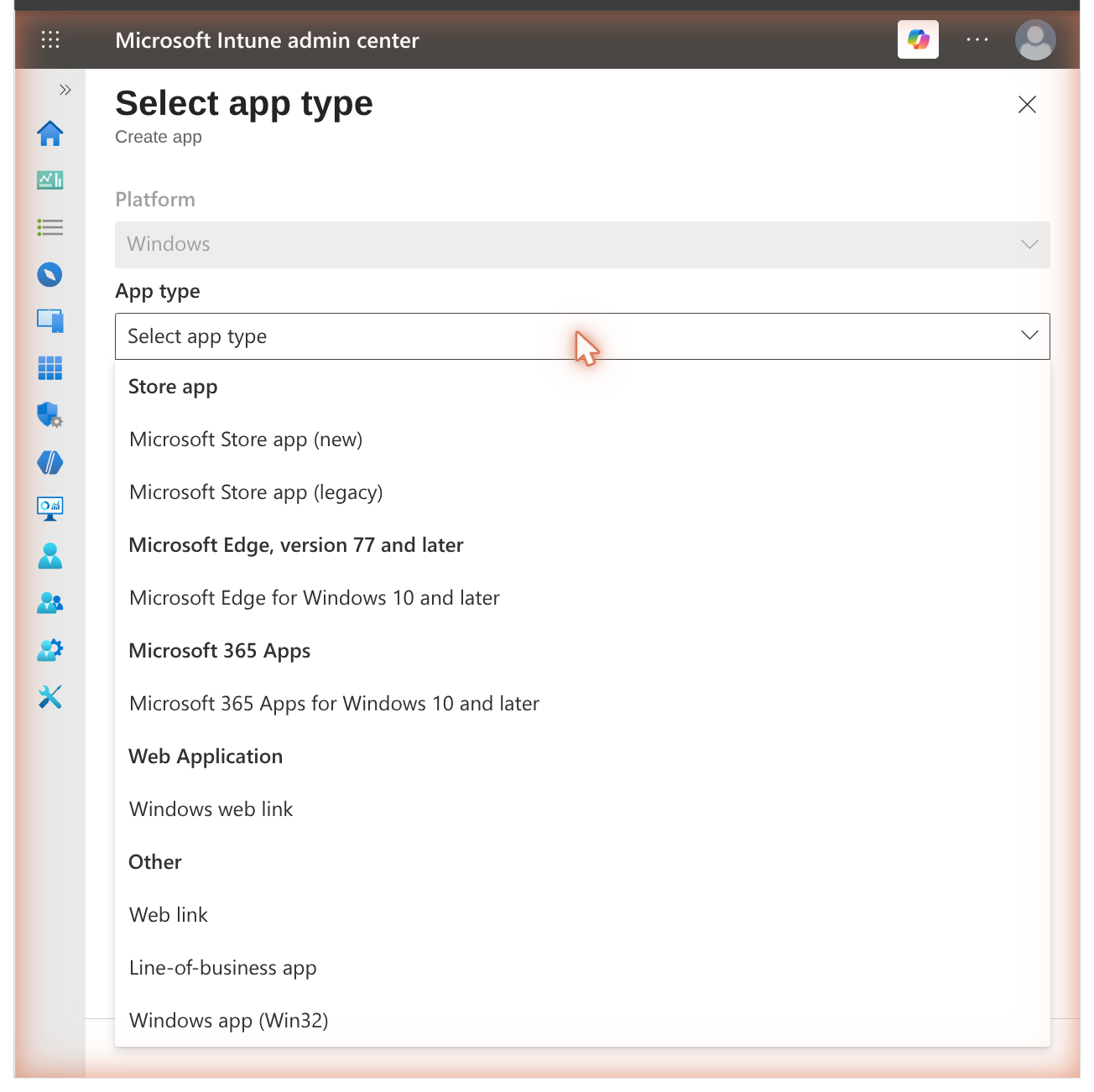
Go to Apps → Windows → Windows apps, select Create, choose app type Windows app (Win32), and select Select.
On App information, select Select app package file and upload
orb-sensor.intunewin.Intune reads the MSI and shows what it found, including the product version and that the package installs per machine.
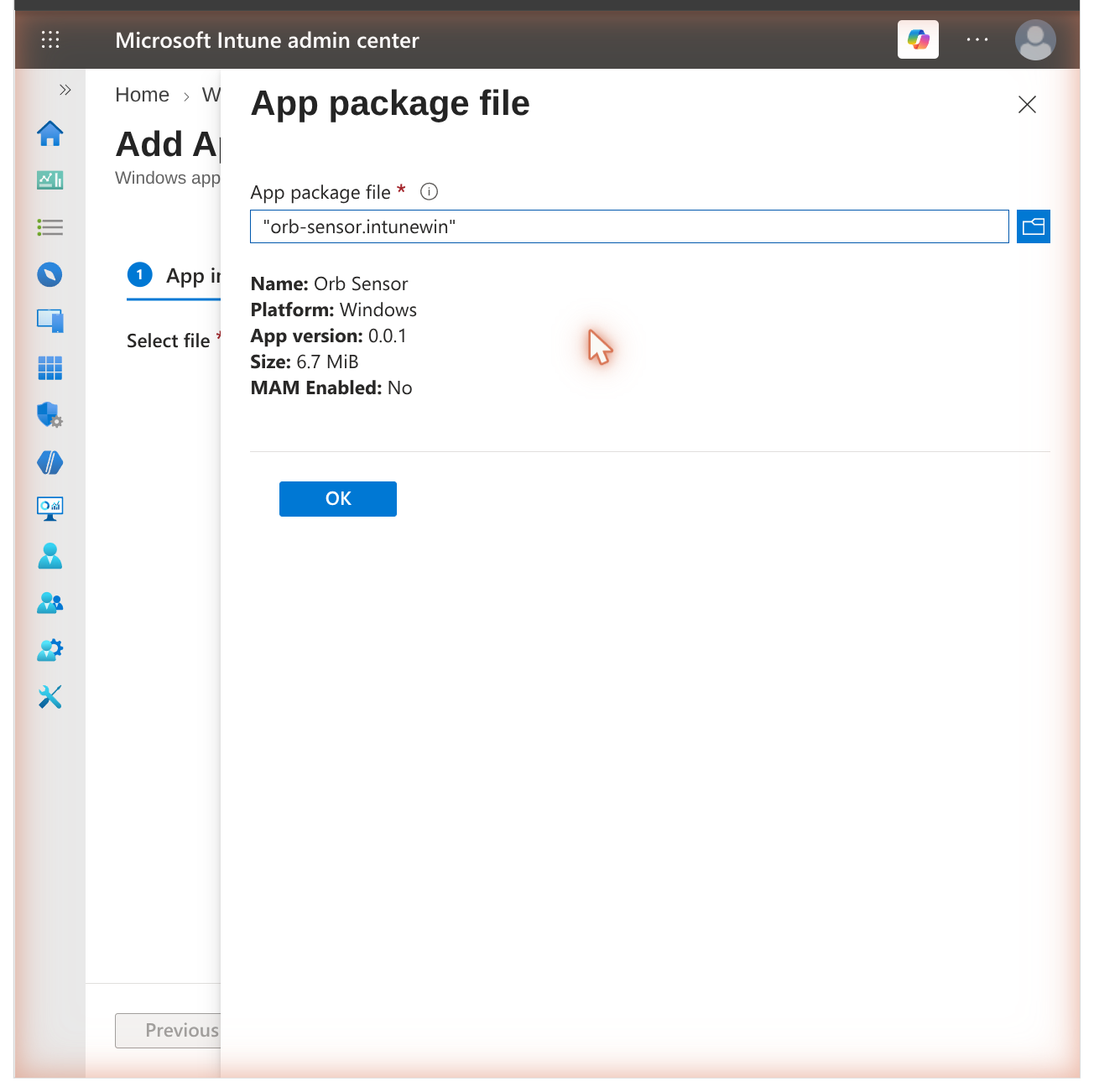
Select OK. The name (
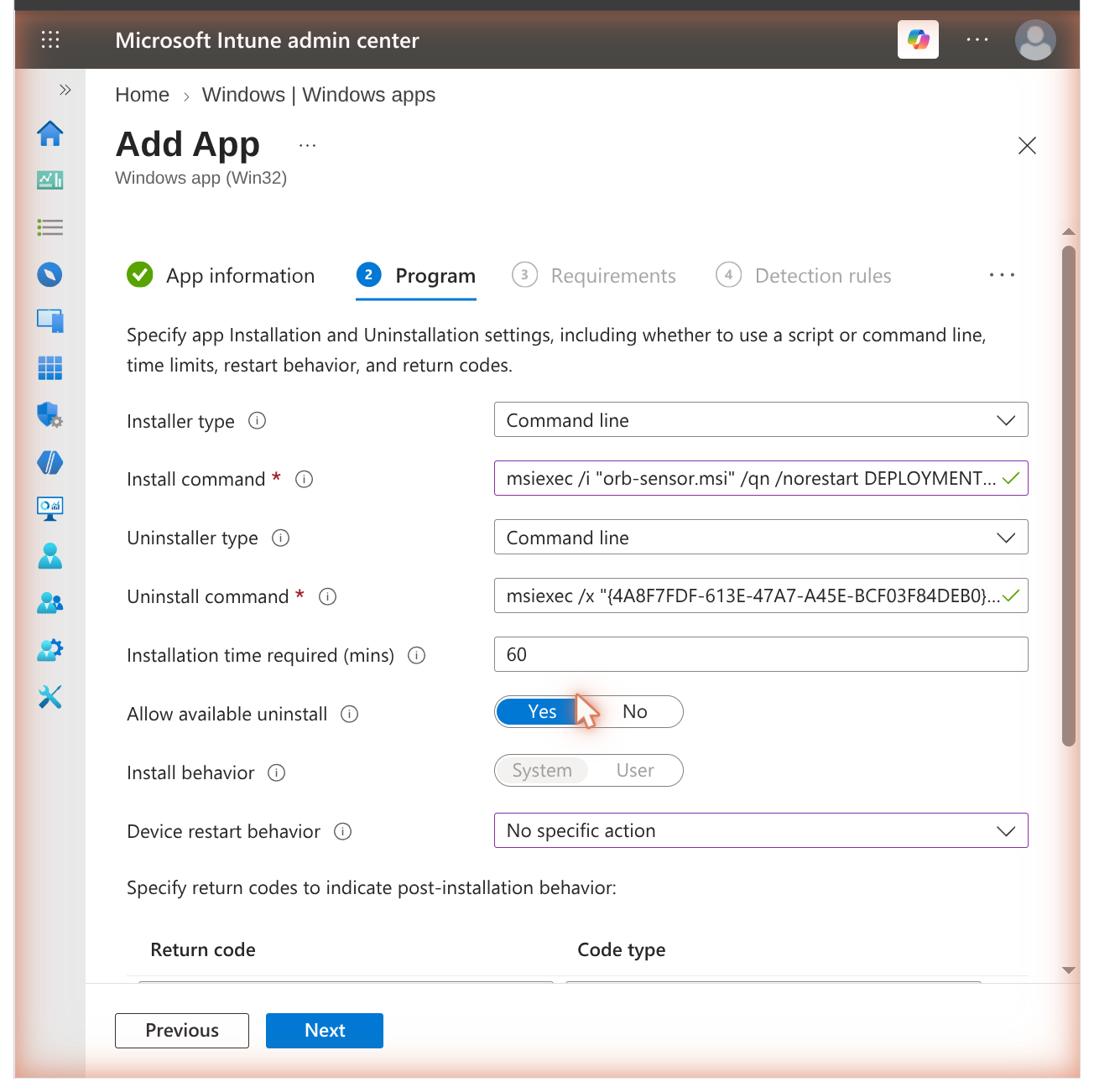
Orb Sensor), publisher and version are filled in from the package. Add a description, then select Next.On Program, set:
Install command
msiexec /i "orb-sensor.msi" /qn /norestart DEPLOYMENTTOKENFILE=deployment_token.txtUninstall command
msiexec /x "{ProductCode}" /qn /norestartReplace
{ProductCode}with the product code shown on the Detection rules page, including the braces. Intune pre-fills both commands from the MSI; add theDEPLOYMENTTOKENFILEproperty to the install command as above.- Install behavior: System — locked, because the package installs per machine
- Device restart behavior: No specific action — the MSI does not require a restart
- Return codes: leave the defaults
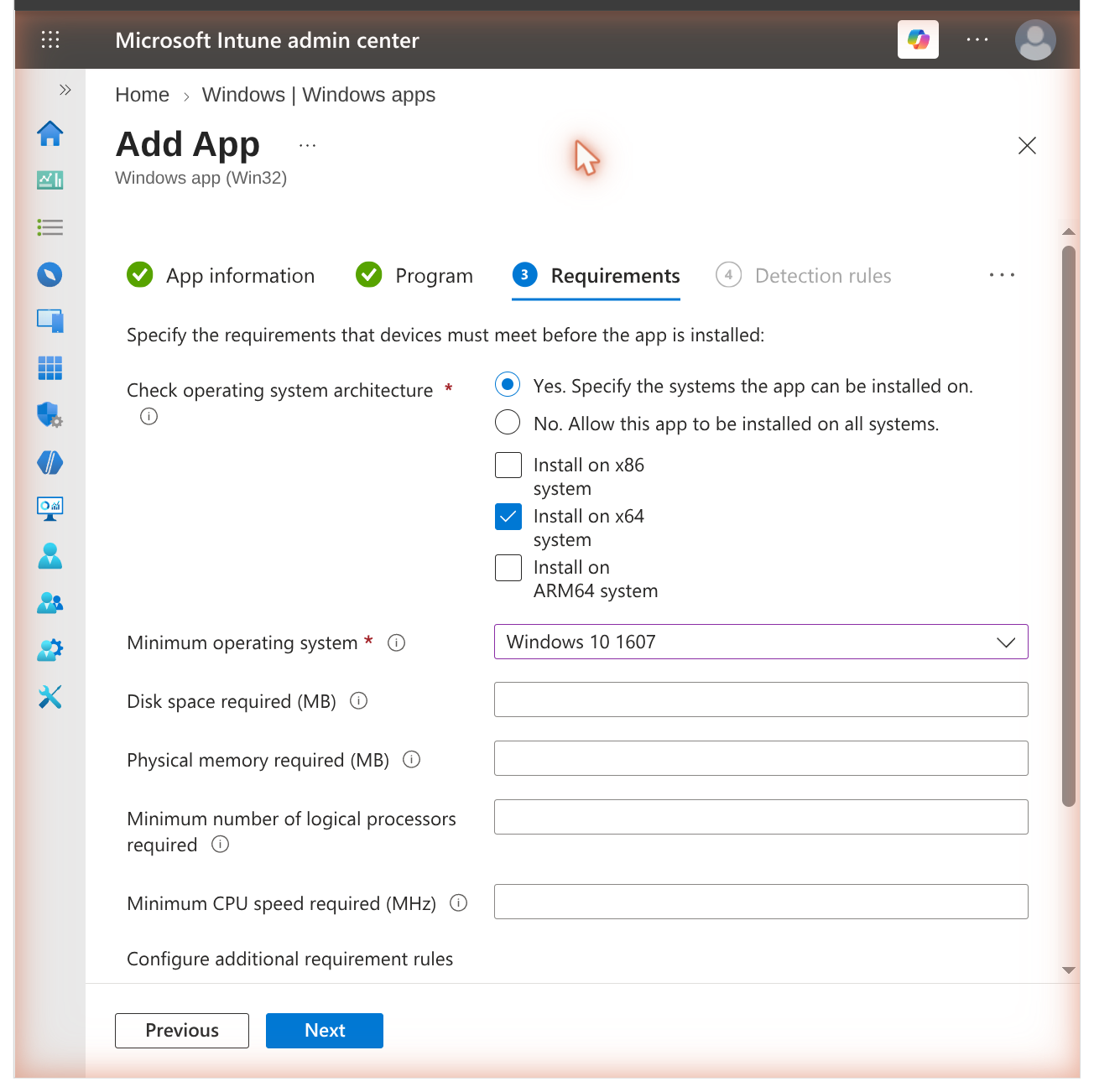
On Requirements, set the operating system architecture to x64 and Minimum operating system to Windows 10 1607, then select Next.
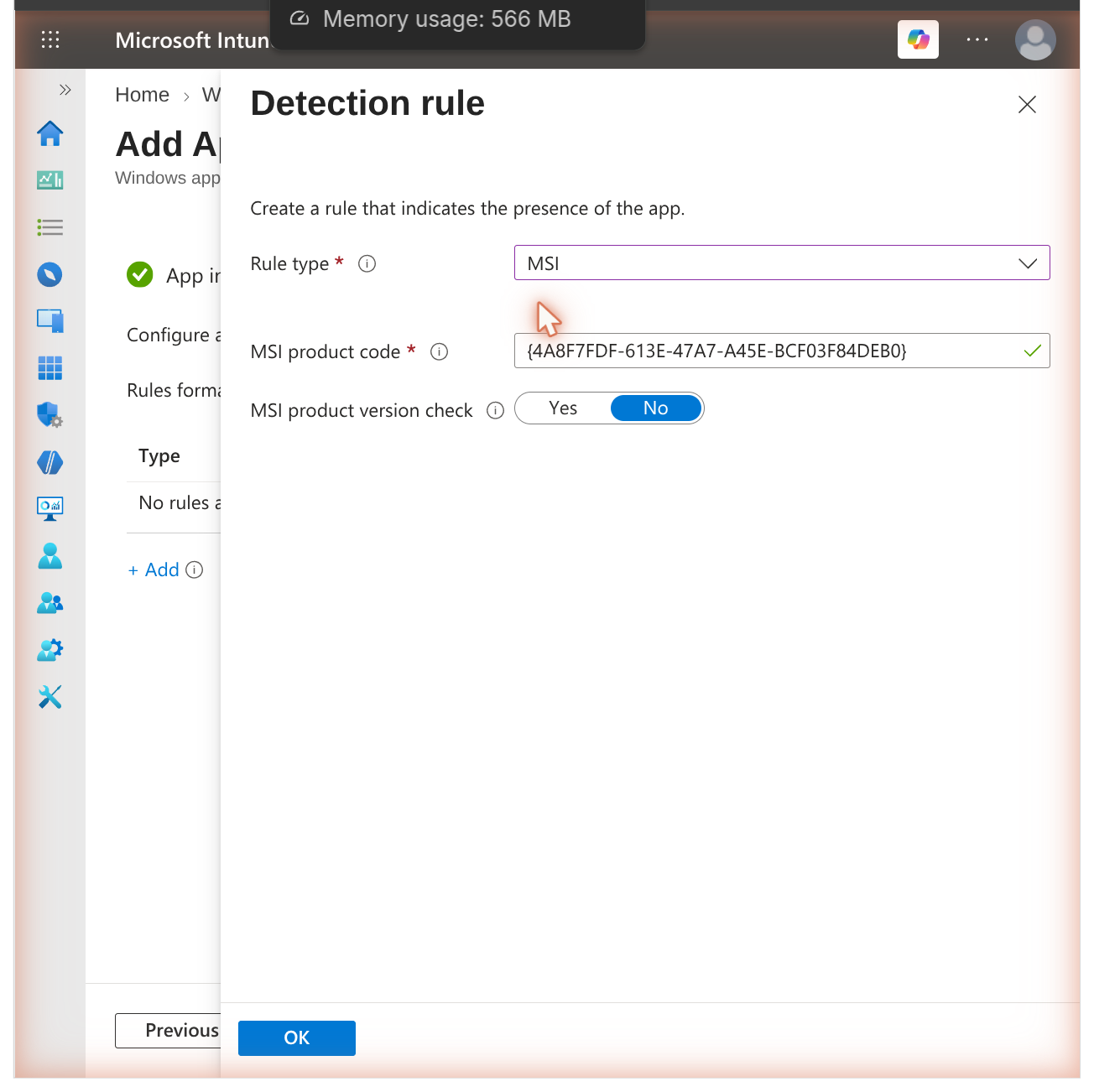
On Detection rules, choose Manually configure detection rules, select Add, and set Rule type to MSI. The MSI product code is filled in from the package. Leave MSI product version check set to No unless you want to pin a minimum version, then select OK.
 note Changing a property and redeploying applies the new value. Removing a property from the command line does **not** clear it — the previous value is kept, by design, so that settings survive upgrades. To clear a setting, uninstall and reinstall. :::Note
MSI product code detection is the reason the sensor is packaged as an MSI. Do not use a file-based rule:
Orb.execarries no Windows file version resource, so a rule of the form file exists and version is at least X never matches, and Intune would reinstall the app on every evaluation.
:::Skip Dependencies. On Supersedence, leave it empty for a first deployment — see Update Orb.
On Assignments, add your device group under Required, then select Next.
Review and select Create.
The service installs and links to your Space with no user interaction and without anyone logging in.
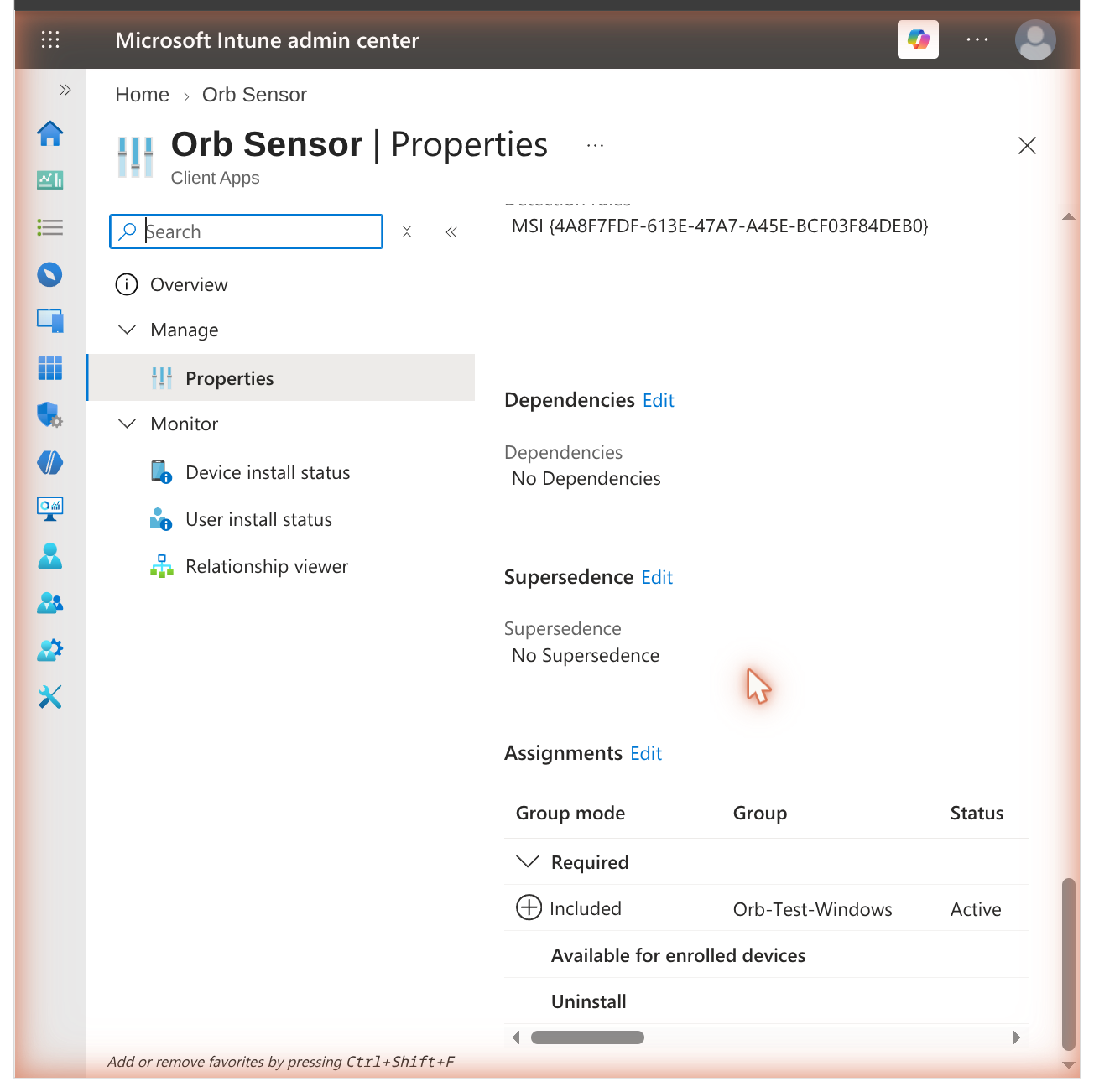
The app's Properties page afterwards shows the detection rule and the assignment, which is the quickest way to confirm the deployment is configured as intended:
Configuration properties
Set any of these as
PROPERTY=valuepairs on the install command. They are persisted so that they survive upgrades.Property Effect DEPLOYMENTTOKENFILEPath to a token file in the package content. Relative paths resolve against the package. DEPLOYMENTTOKENThe token itself. Kept out of the MSI log, but recorded in the Intune install command — prefer the file. ORB_DEVICE_NAME_OVERRIDEName the device reports in your Space. Quote values containing spaces. AUTOUPDATE1lets the sensor update itself on a schedule. Defaults to0when installed from the MSI, which is what you want when Intune manages versions.PURGEDATAUninstall only. 1also removesC:\ProgramData\Orb— see Uninstall Orb.Other sensor options from Orb Configuration are available as properties of the same name, including
ORB_FIRSTHOP_DISABLED,ORB_BANDWIDTH_DISABLED,ORB_EPHEMERAL_MODE,ORB_MEASURE_SERVER_ENABLEDandORB_MEASURE_SERVER_PORT.Migrating from a scripted sensor installation
If a device already runs a sensor installed with
install.ps1, the MSI takes over the existing service in place, keeps the device's identity, and removes the old executable, its folder and its firewall rule. The device stays the same Orb in your Space.Install Orb on Windows describes an optional Orb Auto-Update scheduled task for scripted installations. The MSI removes that task if it finds it. Do not recreate it on devices you manage with Intune: it would replace MSI-owned files, after which Intune reports a version that no longer matches what is running.
Deploy the Orb app
The app follows the same Win32 app pattern, with two important differences: how it is detected, and making it start.
Prepare the package
C:\Intune\
  OrbApp\
    Orb-installer.exe
    Install-OrbApp.ps1
    Uninstall-OrbApp.ps1
    deployment_token.txt
Download the installer from https://pkgs.orb.net/earlyaccess/windows/Orb-installer.exe.
Install-OrbApp.ps1:[CmdletBinding()] param([string] $DeploymentToken) $ErrorActionPreference = 'Stop' if (-not $DeploymentToken) { $sidecar = Join-Path $PSScriptRoot 'deployment_token.txt' if (Test-Path $sidecar) { $DeploymentToken = (Get-Content $sidecar -Raw).Trim() } } if (-not $DeploymentToken) { exit 2 } $installer = Join-Path $PSScriptRoot 'Orb-installer.exe' $flags = @('/S', '/LAUNCH_AT_STARTUP=1', '/START_IN_BACKGROUND=1', "/ORB_DEPLOYMENT_TOKEN=$DeploymentToken") $p = Start-Process -FilePath $installer -ArgumentList $flags -Wait -PassThru if ($p.ExitCode -ne 0) { exit 1 } # Create the all-users startup entry so the app runs at each user's next logon. $startupDir = Join-Path $env:ProgramData 'Microsoft\Windows\Start Menu\Programs\StartUp' New-Item -ItemType Directory -Path $startupDir -Force | Out-Null $shell = New-Object -ComObject WScript.Shell $lnk = $shell.CreateShortcut((Join-Path $startupDir 'Orb.lnk')) $lnk.TargetPath = 'C:\Program Files\Orb\Orb.exe' $lnk.WorkingDirectory = 'C:\Program Files\Orb' $lnk.Save() exit 0WarningThe startup shortcut step is required. Intune installs as
SYSTEM, and/LAUNCH_AT_STARTUP=1on its own creates no startup entry — it only records the preference underHKLM\SOFTWARE\Orb\MDM. Without the shortcut the app is installed but never runs, so it never links to Orb Cloud and does not appear in your Space until each user launches it by hand.Do not launch
Orb.exefrom the installation script instead. The script runs asSYSTEMin session 0, where the app has no visible interface.Uninstall-OrbApp.ps1:$ErrorActionPreference = 'Continue' $lnk = Join-Path $env:ProgramData 'Microsoft\Windows\Start Menu\Programs\StartUp\Orb.lnk' if (Test-Path $lnk) { Remove-Item $lnk -Force -ErrorAction SilentlyContinue } Get-Process Orb -ErrorAction SilentlyContinue | Stop-Process -Force -ErrorAction SilentlyContinue $un = 'C:\Program Files\Orb\uninstall.exe' if (Test-Path $un) { Start-Process -FilePath $un -ArgumentList '/S' -Wait } exit 0Build the package:
.\IntuneWinAppUtil.exe -c "OrbApp" -s "Install-OrbApp.ps1" -o "Output" -qCreate the Win32 app
Create a second Win32 app from
Install-OrbApp.intunewin, with these settings.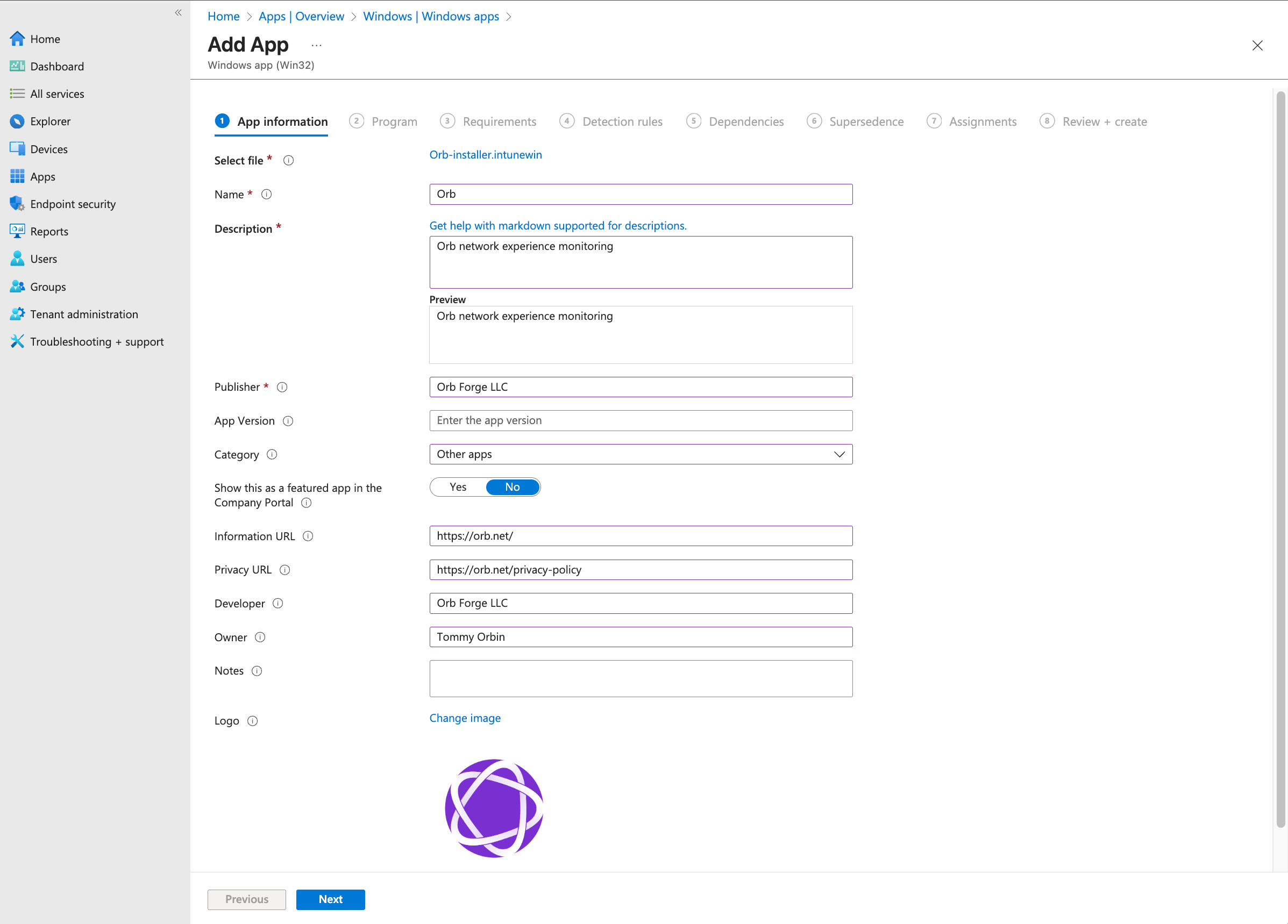
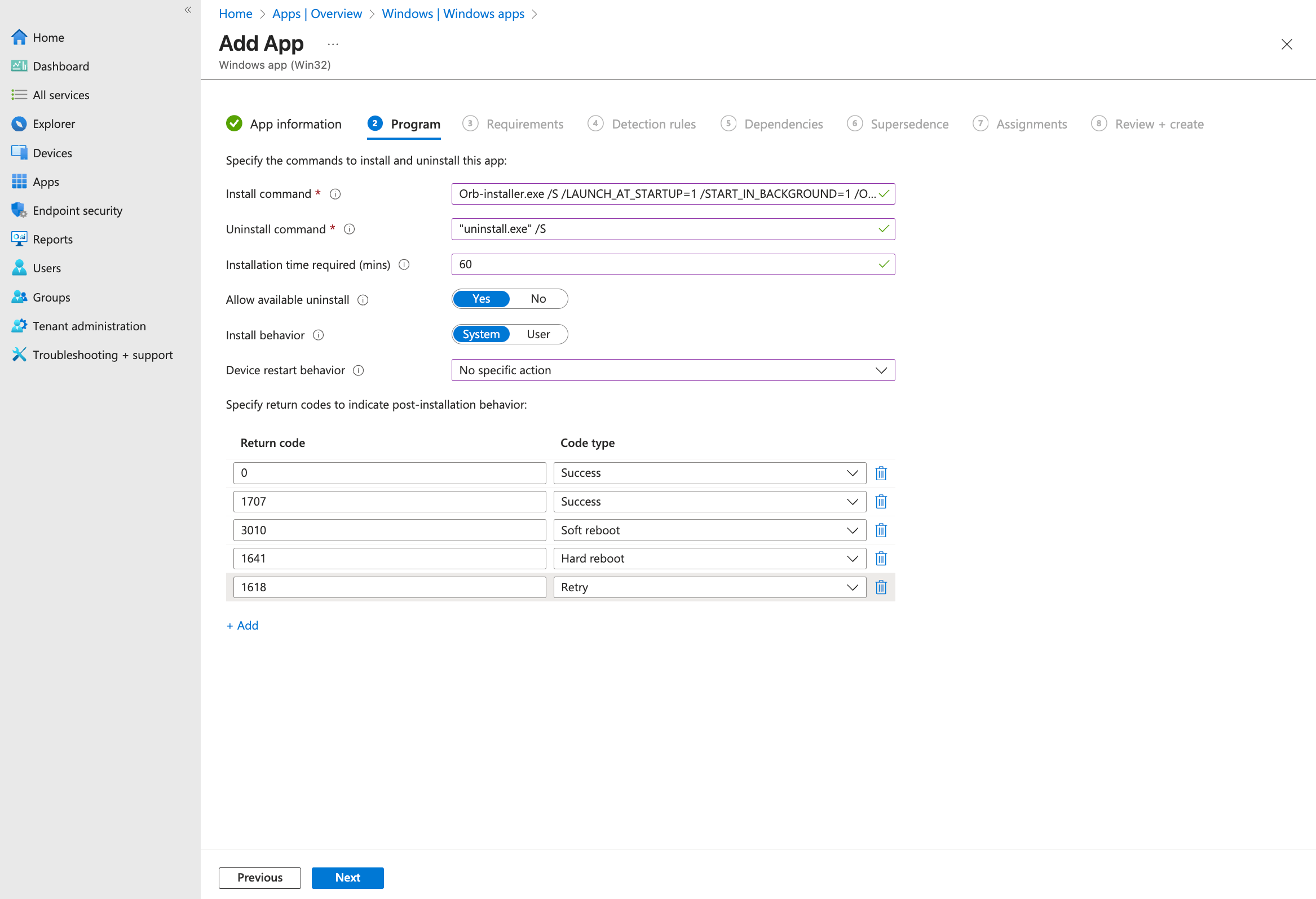
Program
powershell.exe -ExecutionPolicy Bypass -NoProfile -File .\Install-OrbApp.ps1powershell.exe -ExecutionPolicy Bypass -NoProfile -File .\Uninstall-OrbApp.ps1Set Install behavior to System.
 Warning
If you install the app without a wrapper script, use the full path in the uninstall command:
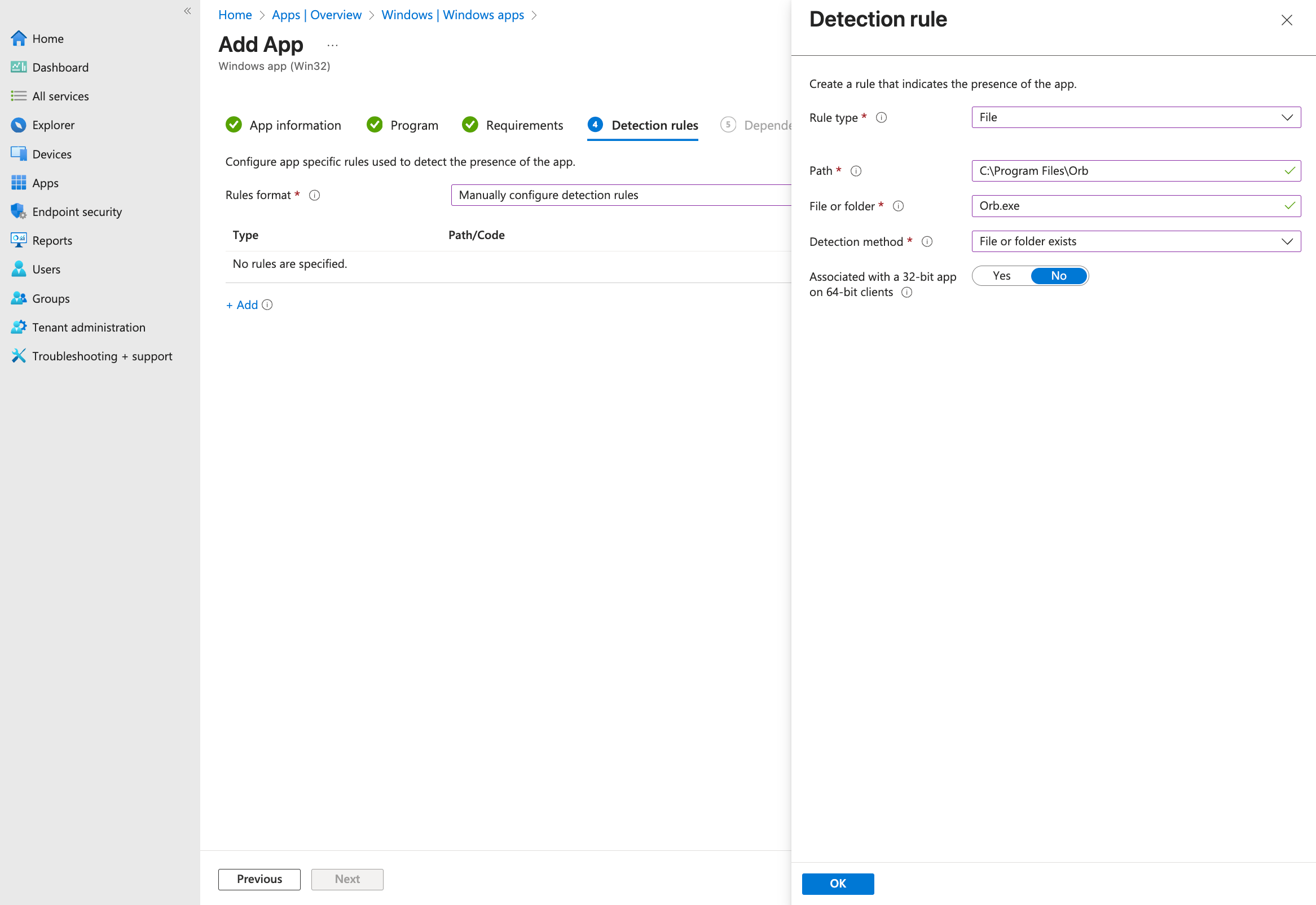
"C:\Program Files\Orb\uninstall.exe" /S. A relativeuninstall.exe /Sfails, because the working directory is Intune's content folder rather than the installation directory.Detection rules — detect the app through its Add/Remove Programs entry:
- Rule type: Registry
- Key path:
HKEY_LOCAL_MACHINE\SOFTWARE\Microsoft\Windows\CurrentVersion\Uninstall\Orb Forge Inc.Orb - Value name:
DisplayVersion - Detection method: String comparison, Equals or Greater than or equal to, with the version you are deploying
 Note
NoteDetect the app through its Add/Remove Programs entry rather than the presence of
C:\Program Files\Orb\Orb.exe. The app'sOrb.exehas no version resource, so no version rule is possible on the file, and the sensor uses a similar path. The Add/Remove Programs entry carries a version and is unambiguous.Verify the deployment
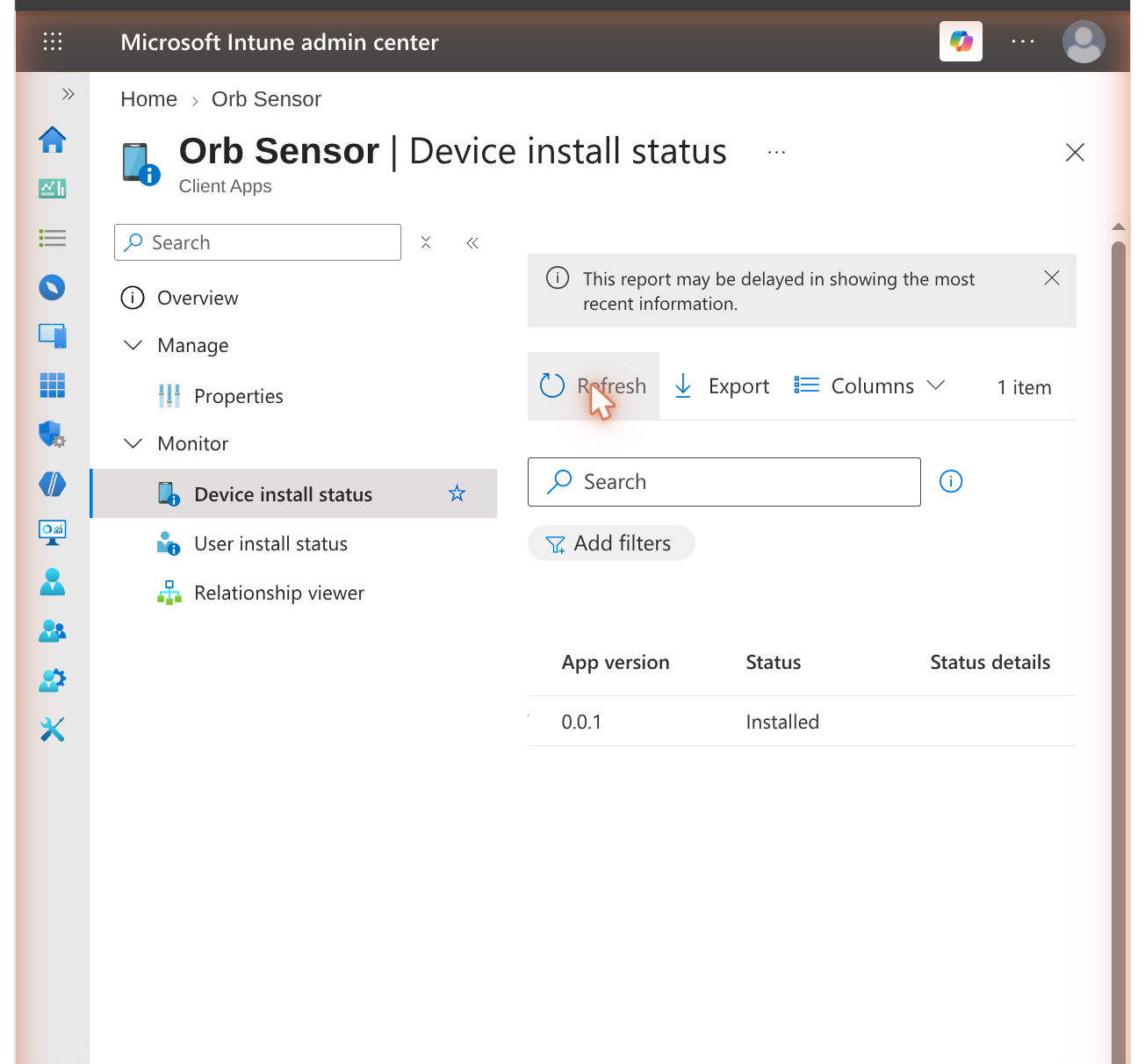
In the admin center, open the app and review Overview and Device install status, which reports each device as Installed, Failed, Pending or Not applicable.
 Note
NoteThe console lags the device. A device that has already installed Orb can still show Install Pending for some time, because the status only updates when the device next reports in. Confirm on the device itself, or in Orb Cloud, before treating a pending status as a problem.
On a target device:
# Sensor
Get-Service Orb
& 'C:\Program Files\Orb Sensor\Orb.exe' version

# App
Get-Process Orb
In Orb Cloud, confirm the device appears in your Space and is reporting.
Useful device-side logs:
Log Shows C:\ProgramData\Microsoft\IntuneManagementExtension\Logs\IntuneManagementExtension.logContent download, install and uninstall, exit codes, detection results C:\ProgramData\Microsoft\IntuneManagementExtension\Logs\AgentExecutor.logOutput from script-based install commands Verbose MSI log Add /l*v C:\Windows\Temp\orb-sensor.logto the sensor install command while troubleshootingTo make a device check in immediately rather than waiting for its next cycle, use Sync on the device in the admin center, or Settings → Accounts → Access work or school → Info → Sync on the device itself.
Update Orb
An MSI-based Win32 app updates through supersedence, which is also what keeps Intune's reported version accurate.
- Build a new
.intunewinfrom the newerorb-sensor.msi. - Create a new Win32 app for that version.
- On the new app's Supersedence page, add the previous app and leave Uninstall previous version set to No. The MSI performs a major upgrade in place.
- Assign the new app and remove the assignment from the old one.
Upgrading keeps the device's identity: it stays the same Orb in your Space rather than appearing as a duplicate, and its Deployment Token and configuration properties are preserved.
For the app, replace
Orb-installer.exein the package source, rebuild, and raise the version in the detection rule.WarningDo not enable the sensor's own auto-update (
AUTOUPDATE=1) on devices you manage with Intune. Devices would move to new versions outside your change control, and self-replaced files leave Intune reporting a version that is no longer installed.Uninstall Orb
Assign the app to a group under Uninstall, or remove the Required assignment and add an Uninstall assignment for the same group.
Uninstalling the sensor removes the service, the program folder, the firewall rule and the Add/Remove Programs entry, and leaves
C:\ProgramData\Orbin place. That folder holds the sensor's identity and Deployment Token, which is what allows a reinstall to return as the same Orb rather than creating a duplicate in your Space.WarningWhen you decommission or repurpose a device, remove
C:\ProgramData\Orbas well. It contains the Deployment Token and the sensor's private key. AddPURGEDATA=1to the uninstall command to remove it — note that a later installation then enrolls as a new Orb:msiexec /x "{ProductCode}" /qn /norestart PURGEDATA=1Troubleshooting
The app installs but Intune reports it as failed or keeps reinstalling
Detection is failing. For the sensor, confirm the detection rule is an MSI rule with the product code of the package you deployed; a new version has a new product code. For the app, confirm the registry rule points at the Add/Remove Programs key above. Check the detection result in
IntuneManagementExtension.log.The app is installed but does not appear in Orb Cloud
The app only reports while it is running, and it runs only in a user session. Confirm that
C:\ProgramData\Microsoft\Windows\Start Menu\Programs\StartUp\Orb.lnkexists and that a user has logged on since installation.The sensor does not have this constraint: it runs as a service and reports without anyone logging in.
Orb does not link to my Space
- Confirm
C:\ProgramData\Orb\deployment_token.txtexists (sensor), or thatHKLM\SOFTWARE\Orb\MDM\OrbDeploymentTokenis set (app). - Confirm the token is still valid in Orchestration.
- Confirm the device can reach the internet.
If the token was rejected, the sensor MSI fails the installation immediately with
1603and reports the reason in its verbose log rather than installing a sensor that never links. If Orb Cloud is merely unreachable, installation succeeds and the device links when it next has connectivity.Installation fails with an error code
Code Means 1603Fatal installation error. Read the verbose MSI log; a rejected Deployment Token reports this. 1618Another installation is in progress. Intune retries. 0x80070005Access denied. Confirm Install behavior is System. Additional configuration
Both deliverables support the configuration options described in Orb Configuration. For the sensor, set them as MSI properties as described above. For the app, MDM settings are read from
HKLM\SOFTWARE\Orb\MDM, whereOrbDeviceNameOverridesets the name the device reports in your Space.To deploy Orb with Microsoft Configuration Manager instead, see Microsoft Configuration Manager (SCCM).